Fastvue Reporter 4.5: Redesigned Safeguarding Report, AI risk assessment, and email and chat monitoring
Fastvue Reporter 4.5 is out, with a rebuilt Safeguarding Report ordered by risk, an optional AI risk assessment that clears keyword false positives, and email and Teams chat monitoring from Microsoft 365.
 Scott Glew
Fastvue Reporter 4.5 is here, featuring a rebuilt Safeguarding Report, an optional AI risk assessment feature that clears keyword false positives, and support for importing email, Teams chat and channel messages from Microsoft 365. Google Workspace support is coming soon.
Here is a nine minute walkthrough of everything in this post.
The new Safeguarding Report
The Safeguarding Report has always been the report schools run every morning, so it got the most attention in this release. You still get to it the same way. Go to Reports > Overview Report > Safeguarding, filter by a security group such as your senior school students, pick your desired date range and run it. You can also schedule it daily, weekly or monthly and send it to your wellbeing team.
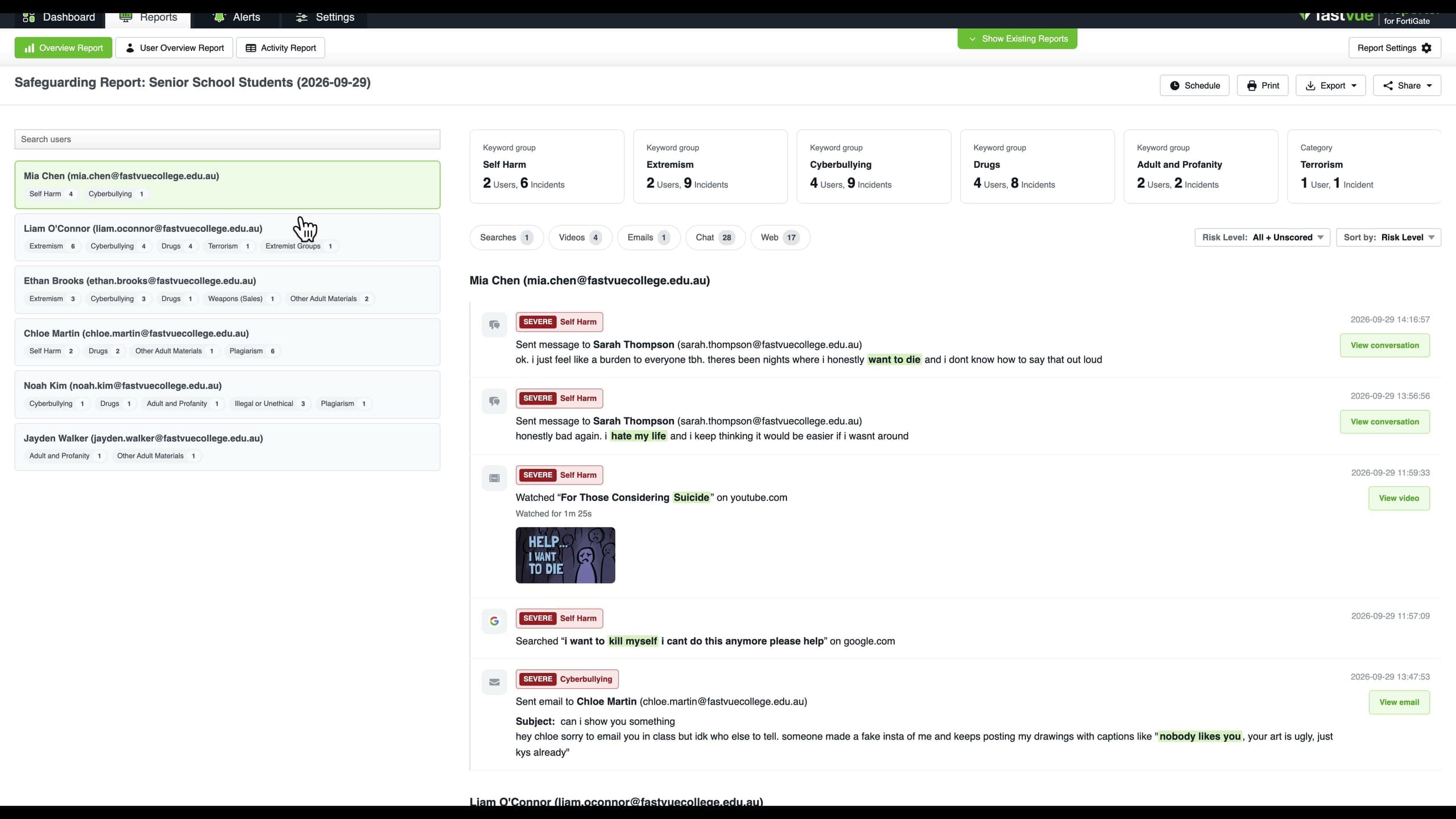
Every user who was flagged for an online incident is listed down the left, with their incidents on the right. Click a name and the report jumps to that user.
The cards along the top show the types of concern found in the report. Click Self Harm to see only self harm incidents, or combine it with Extremism, Cyberbullying etc. The user list on the left updates as you filter, so you can see who is involved in a particular type of concern at a glance. Clear All Filters takes you back to the full report.
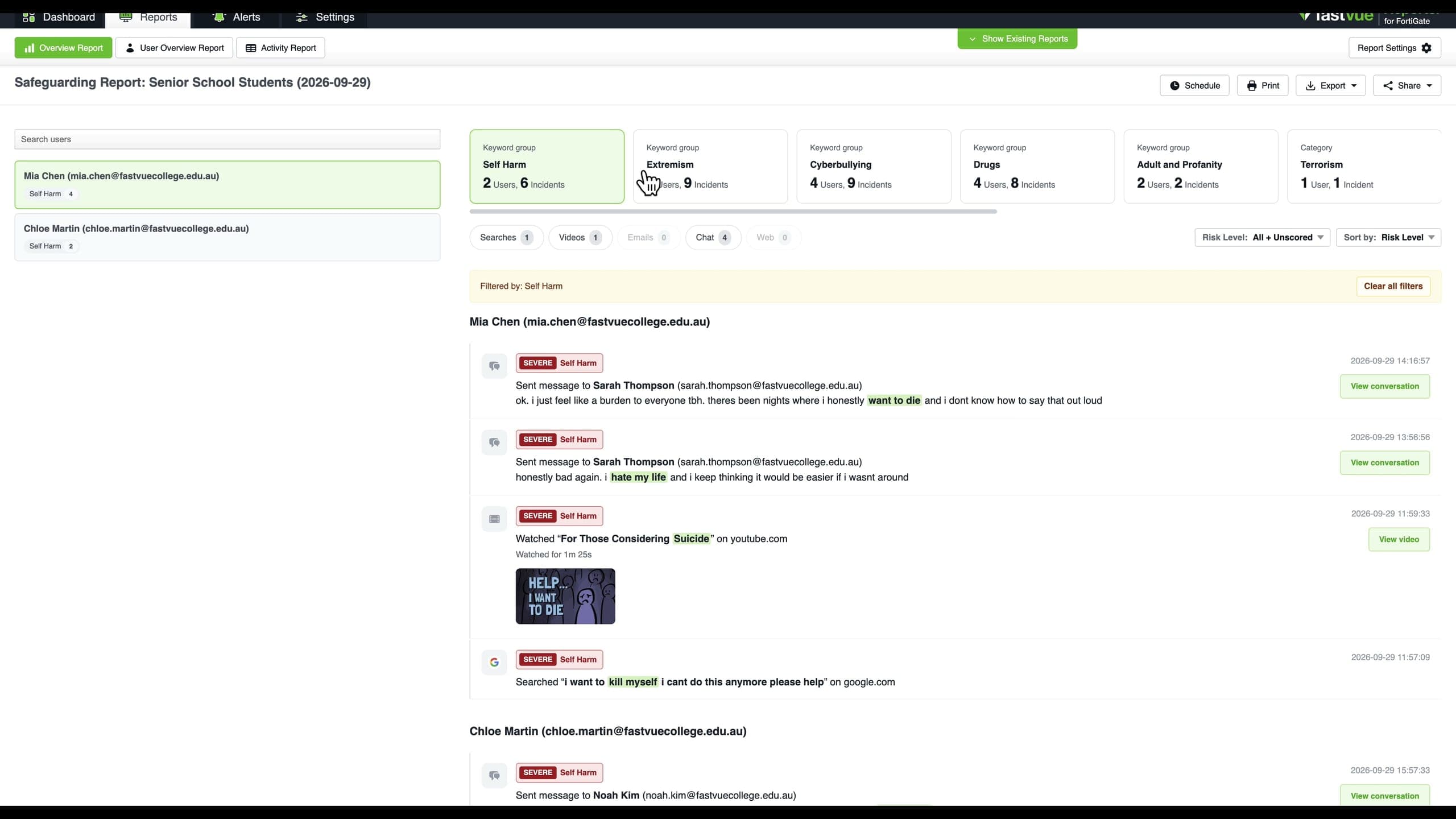
Below the cards are the activity types. Searches, Videos and Web (websites) have been in the report for a long time. Emails and Chat are new in 4.5, and cover messages imported from Microsoft 365.
AI Risk Assessment
Every incident in the report will carry a risk level of Severe, Serious, Moderate or Mild, assigned by our new AI risk assessment feature. Anything the AI has cleared is marked No Risk and hidden by default. Anything the AI has not seen, such as data imported before you turned the feature on, shows as Unscored.
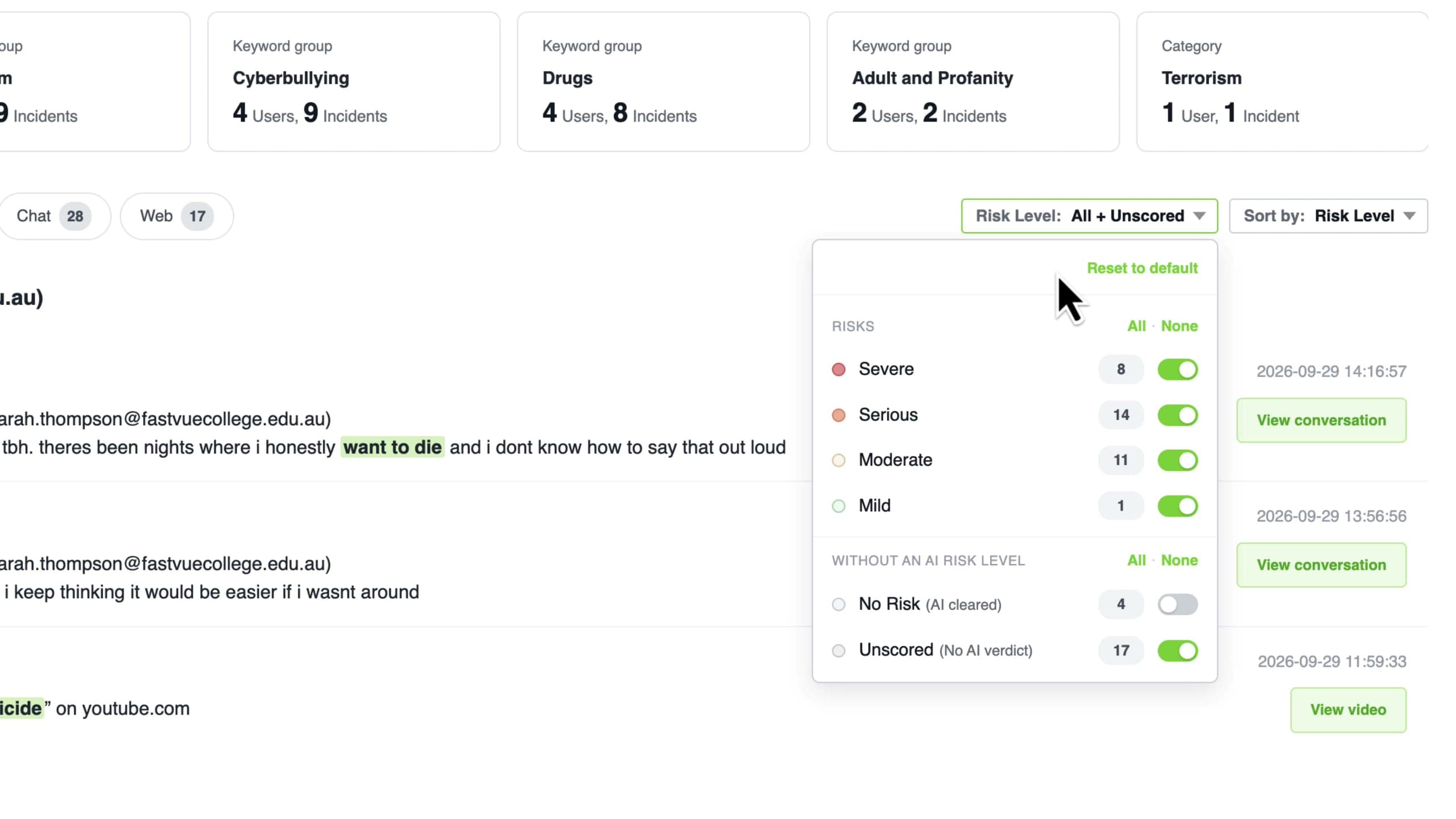
The whole report is sorted by risk, including the users. The student at the top of the list is the one you probably want to talk to first.
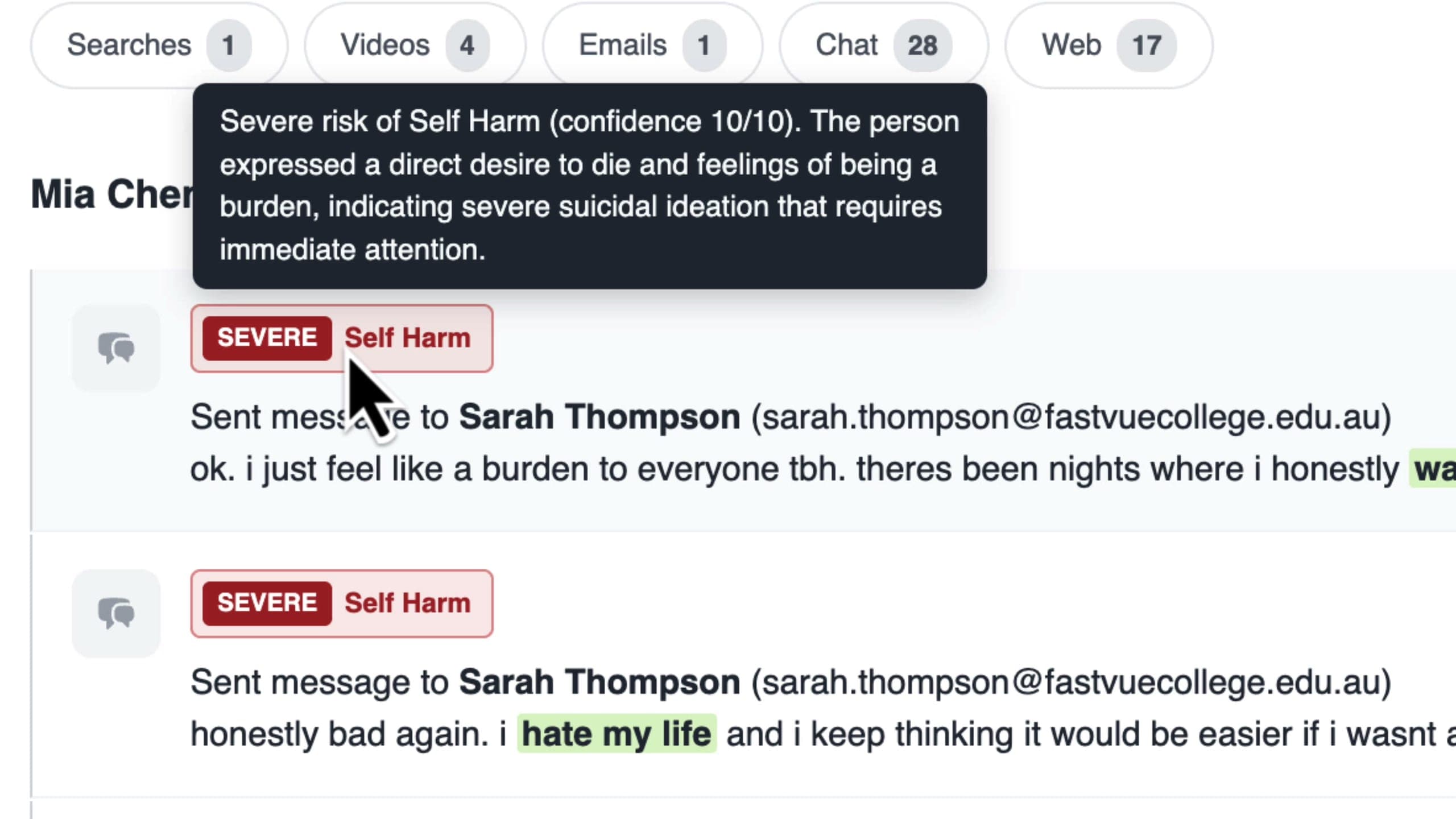
Hover over the risk chip on any incident and you get the AI's reason for the rating along with its confidence score. In the example below it explains that the message expresses a direct desire to die indicating severe suicidal ideation.
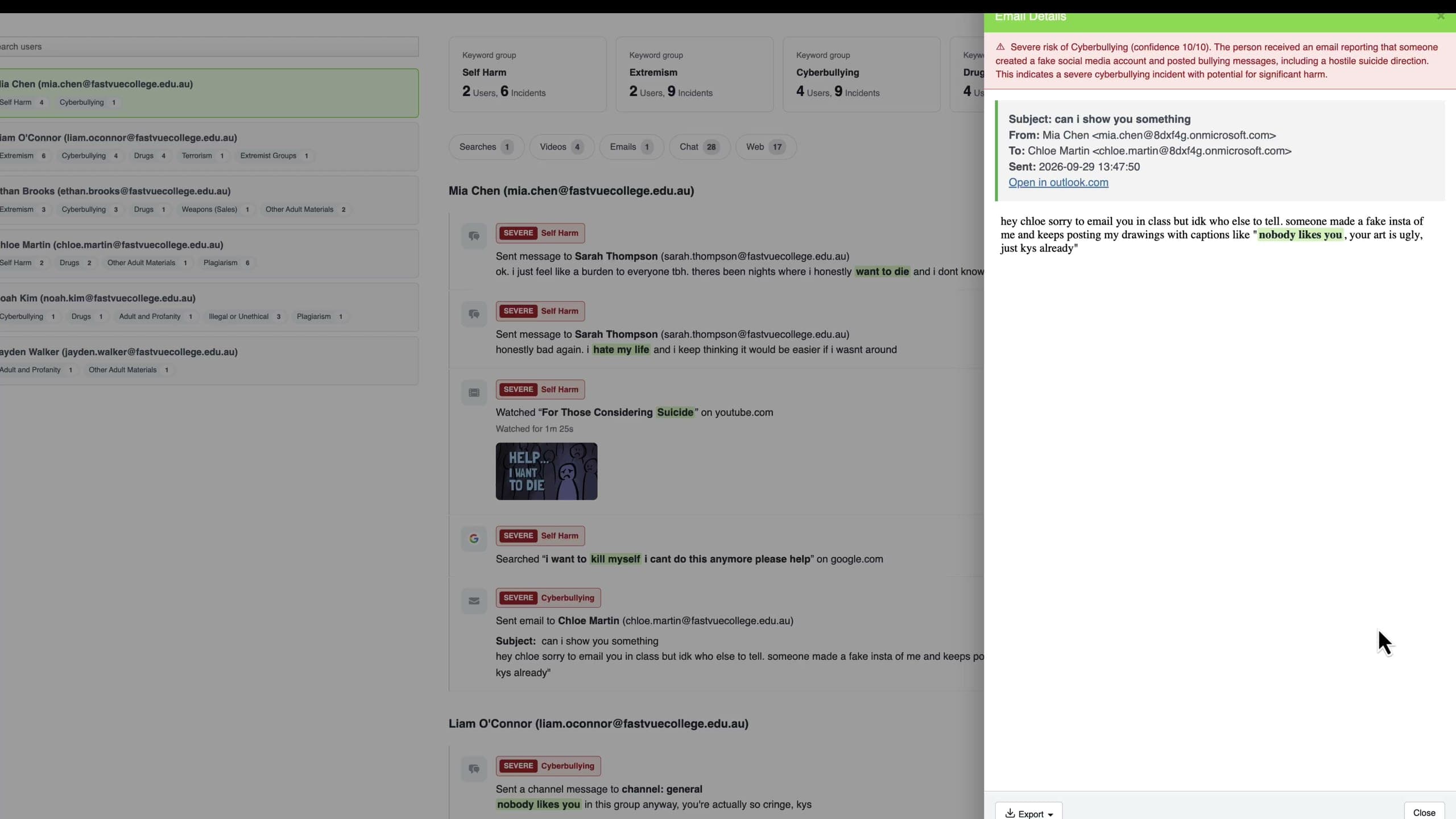
See the whole conversation, video or email
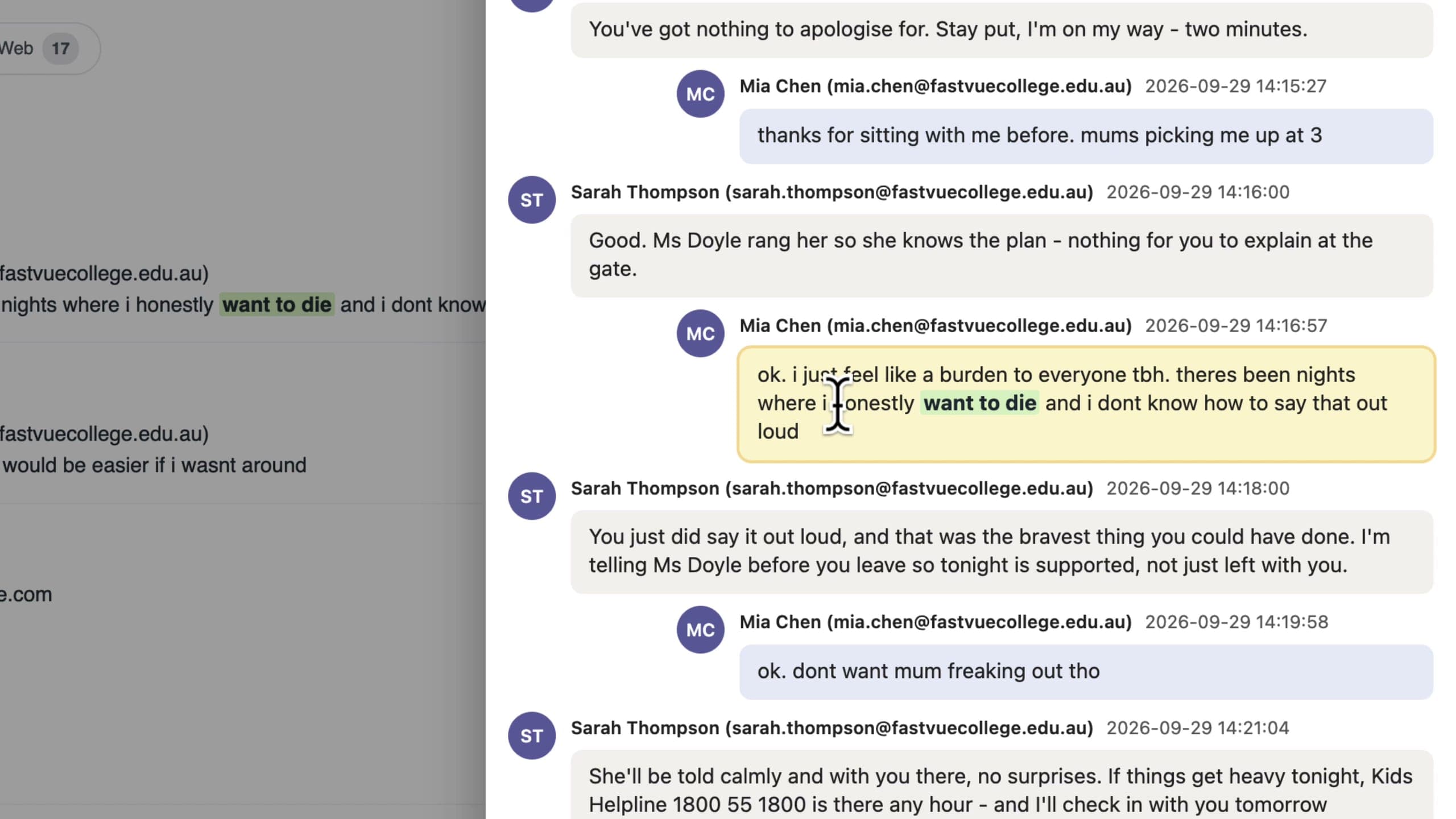
A flagged snippet of a chat message rarely tells the full story on its own. Click View Conversation and you get the messages before and after it, with the flagged message highlighted.
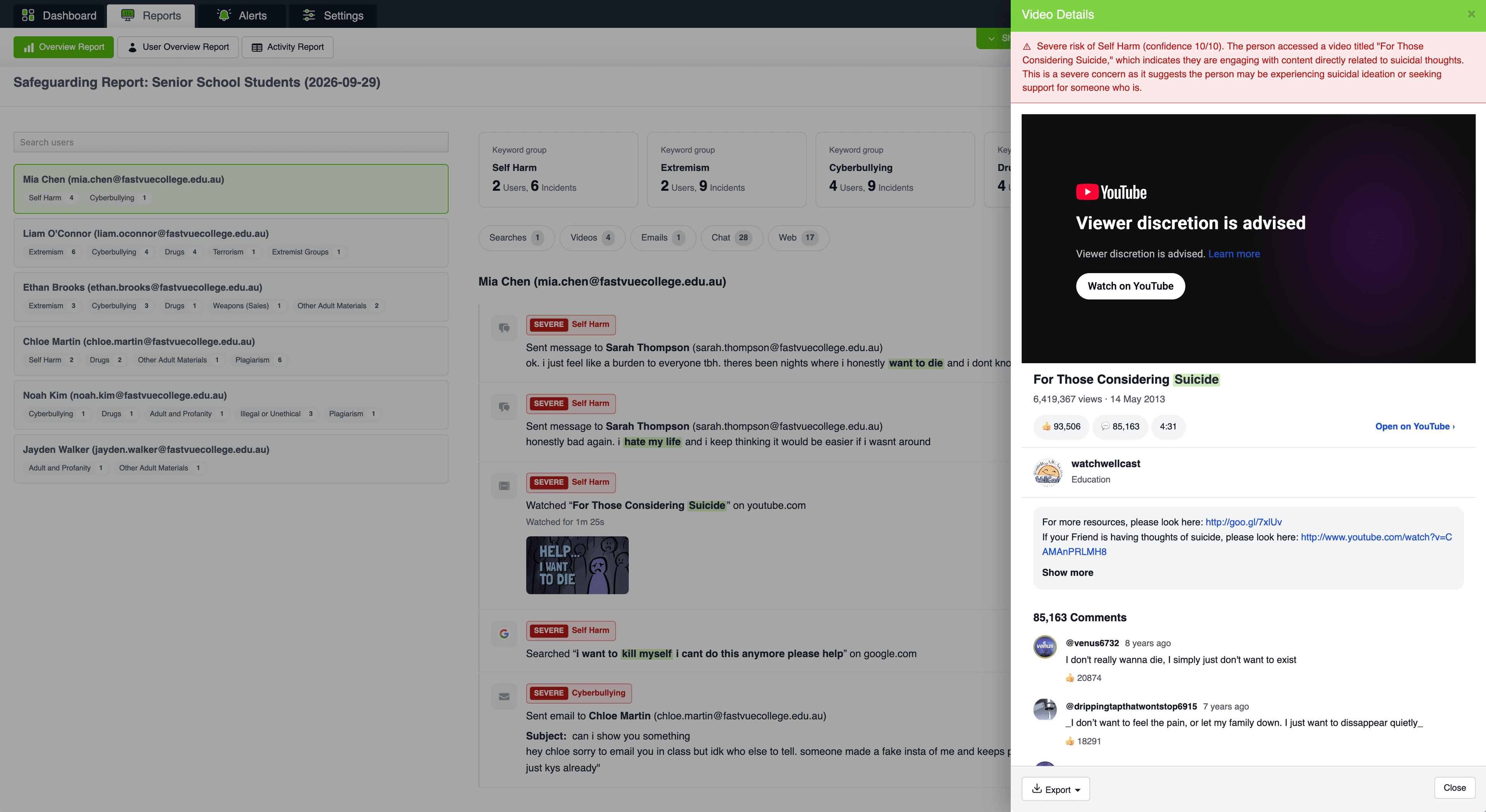
For videos, the report pulls in the YouTube title, description and comments.
For emails, it shows the full email with the sender, recipient, subject and body.
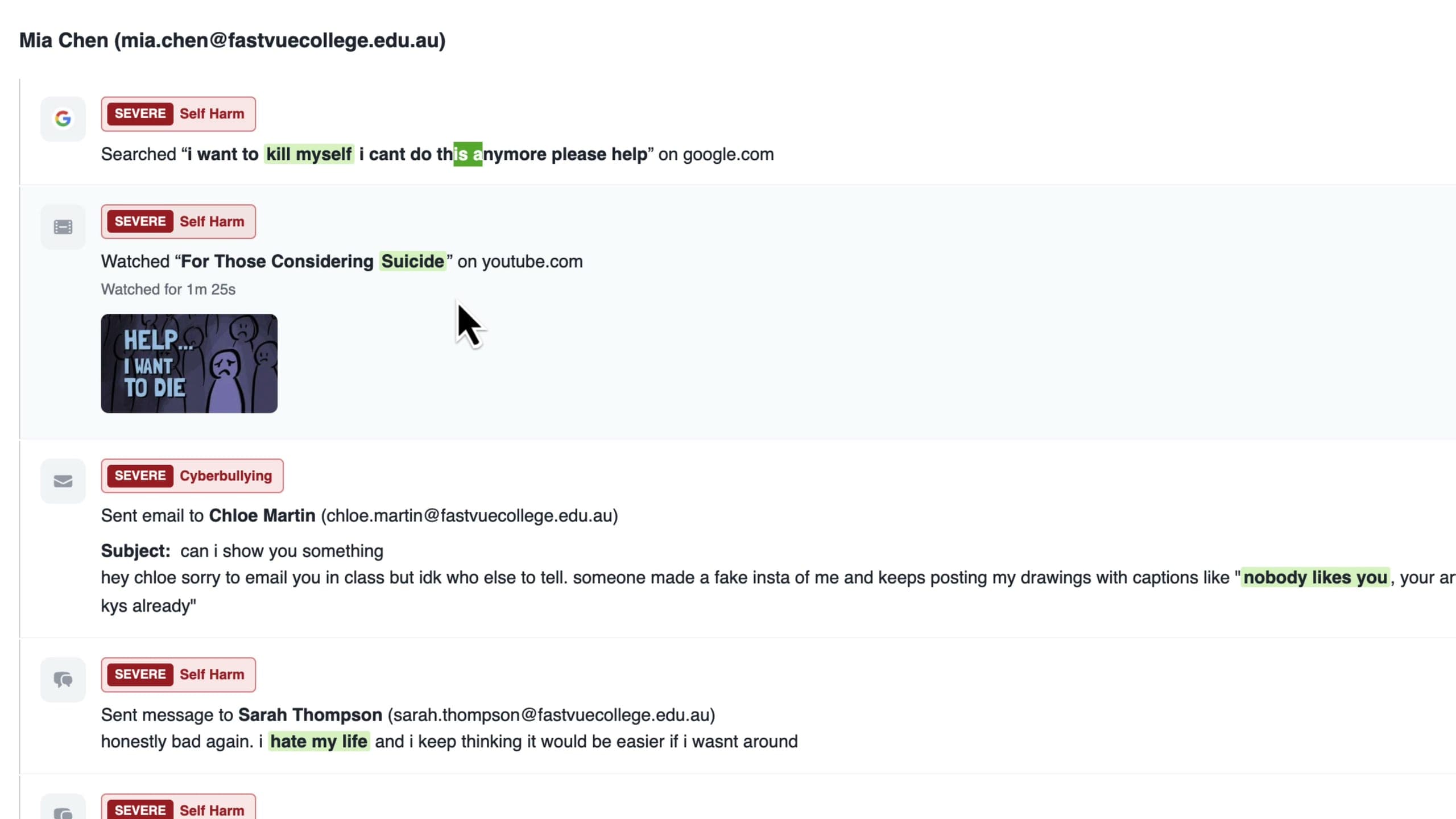
You can also sort a user's incidents by time instead of risk, to see the order things happened in. Below, Mia ran a search, watched a video, emailed a friend and then sent chat messages.
Web incidents and Site Clean
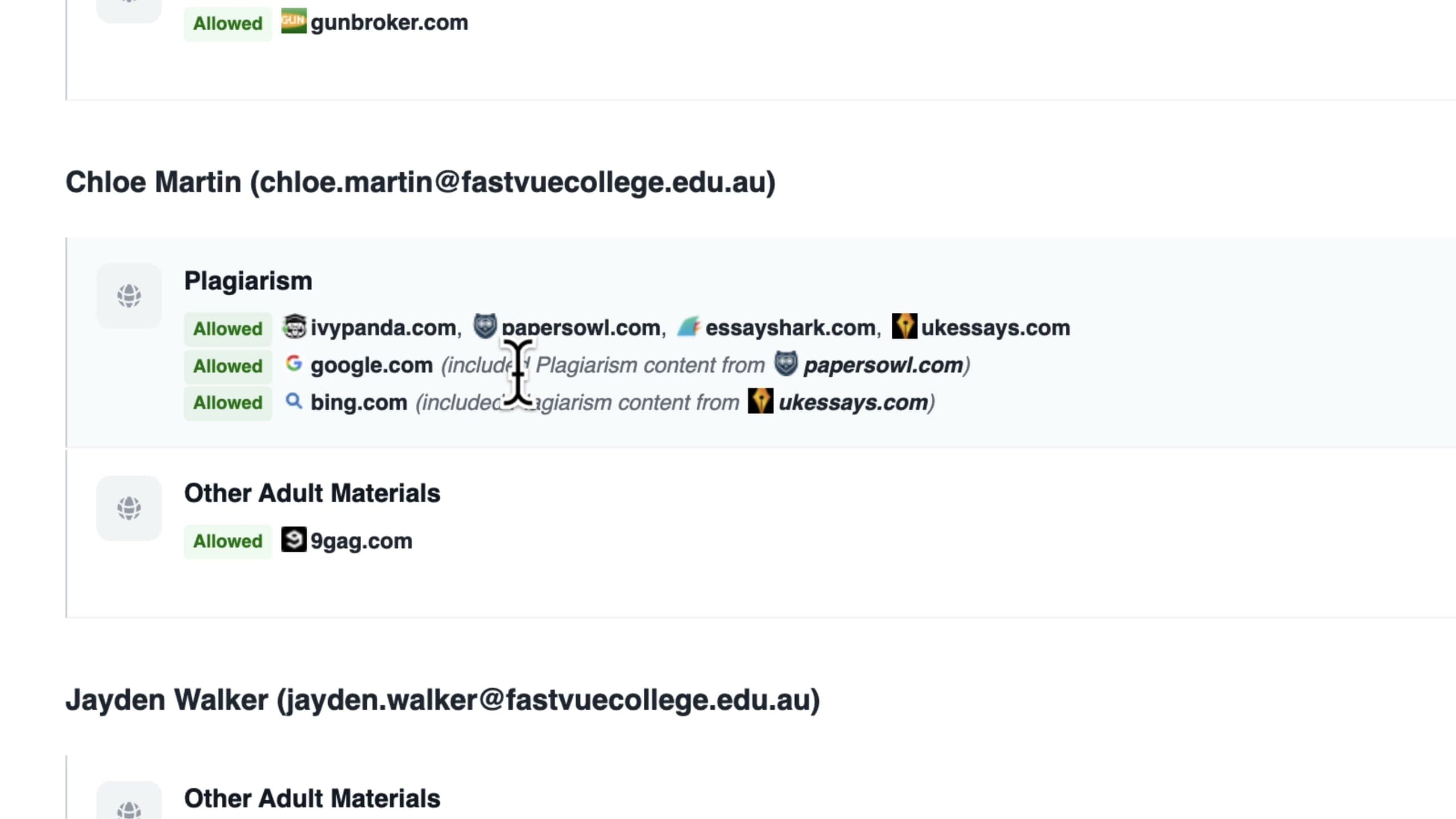
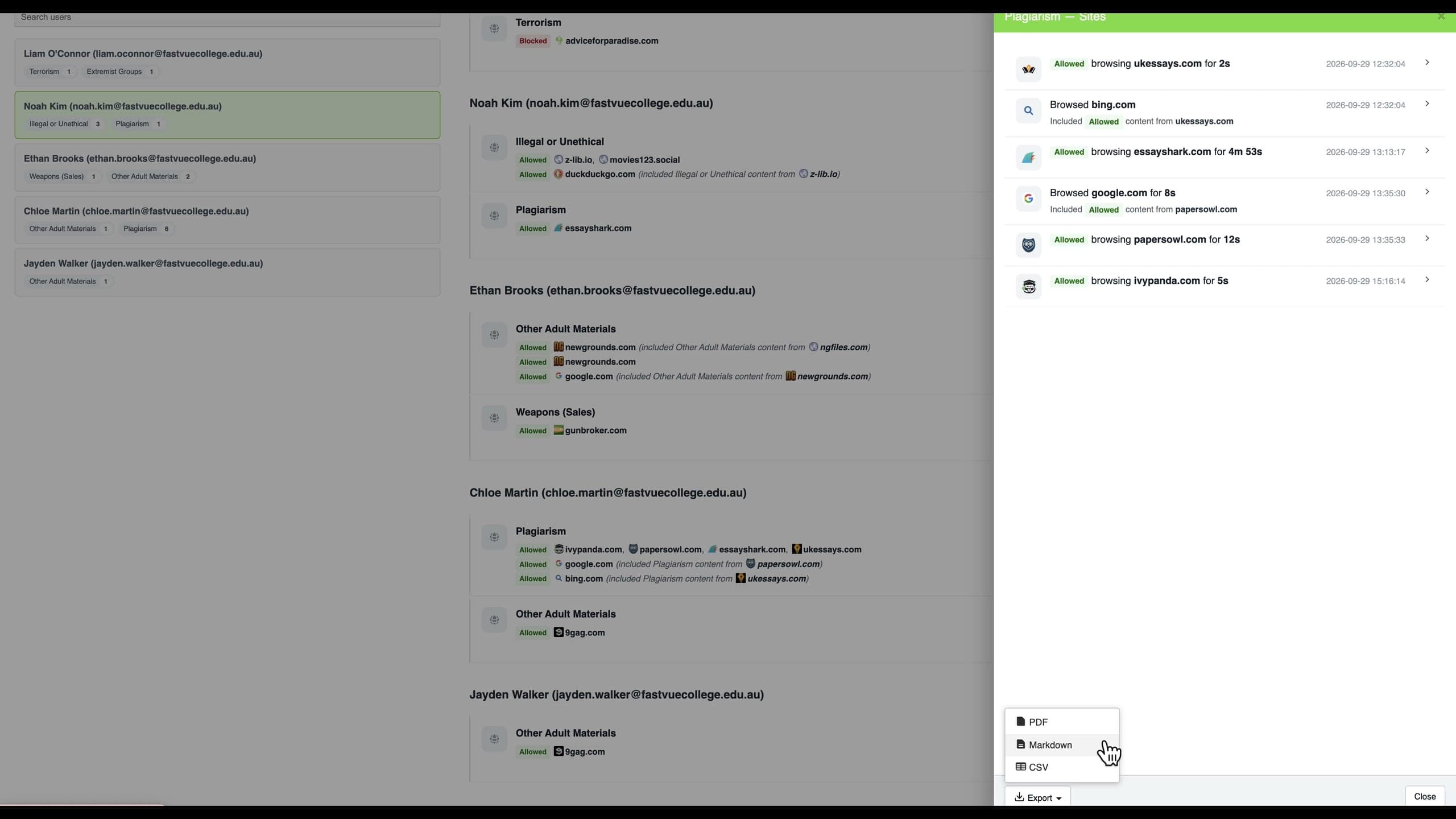
Web incidents are grouped by category for each user. Within a category, Fastvue's Site Clean technology shows the site the student was on, rather than the ads, images and trackers that came along for the ride. In the example below Chloe visited several plagiarism sites directly, and also hit plagiarism content while on Google and Bing. The report shows both.
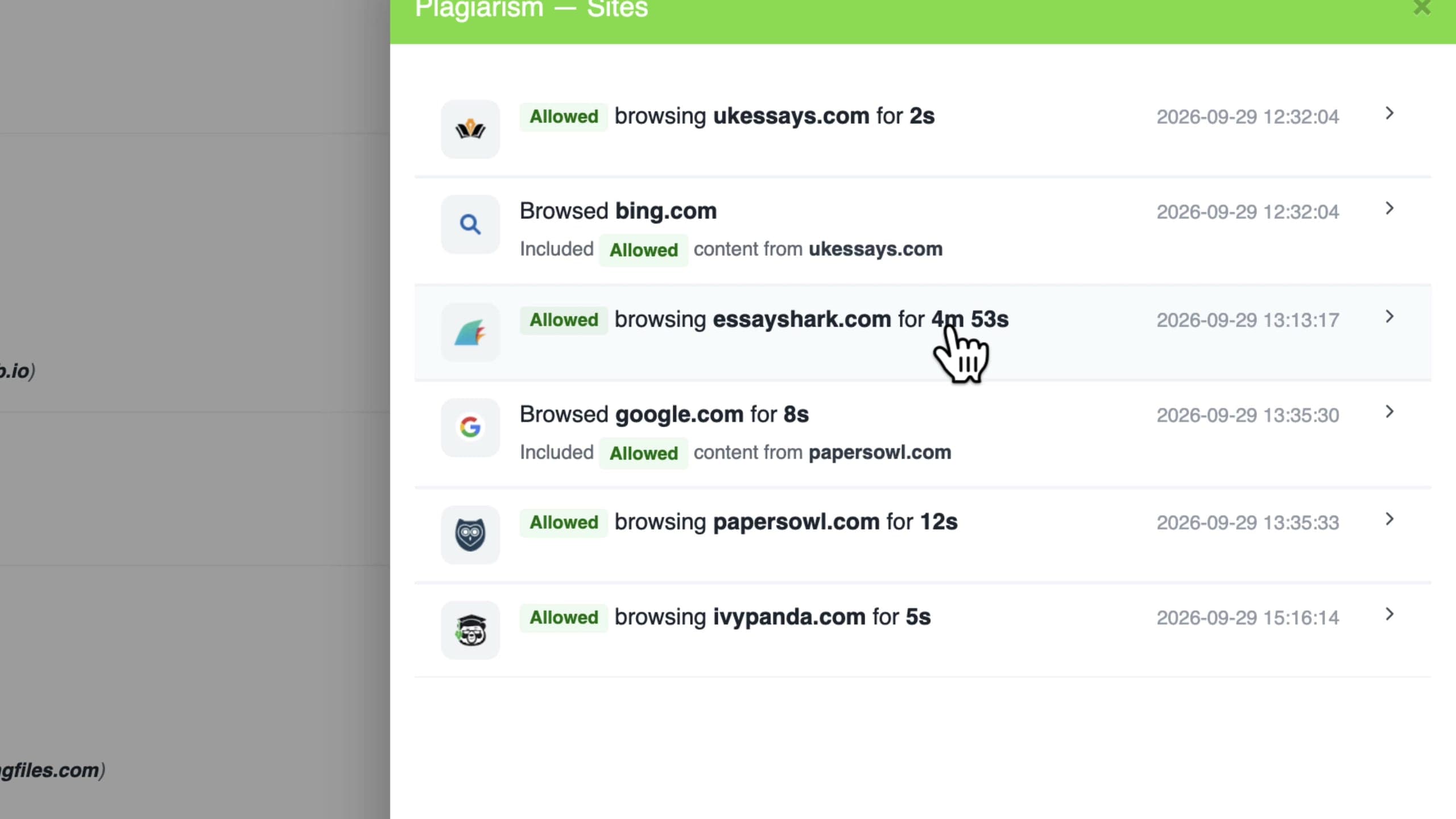
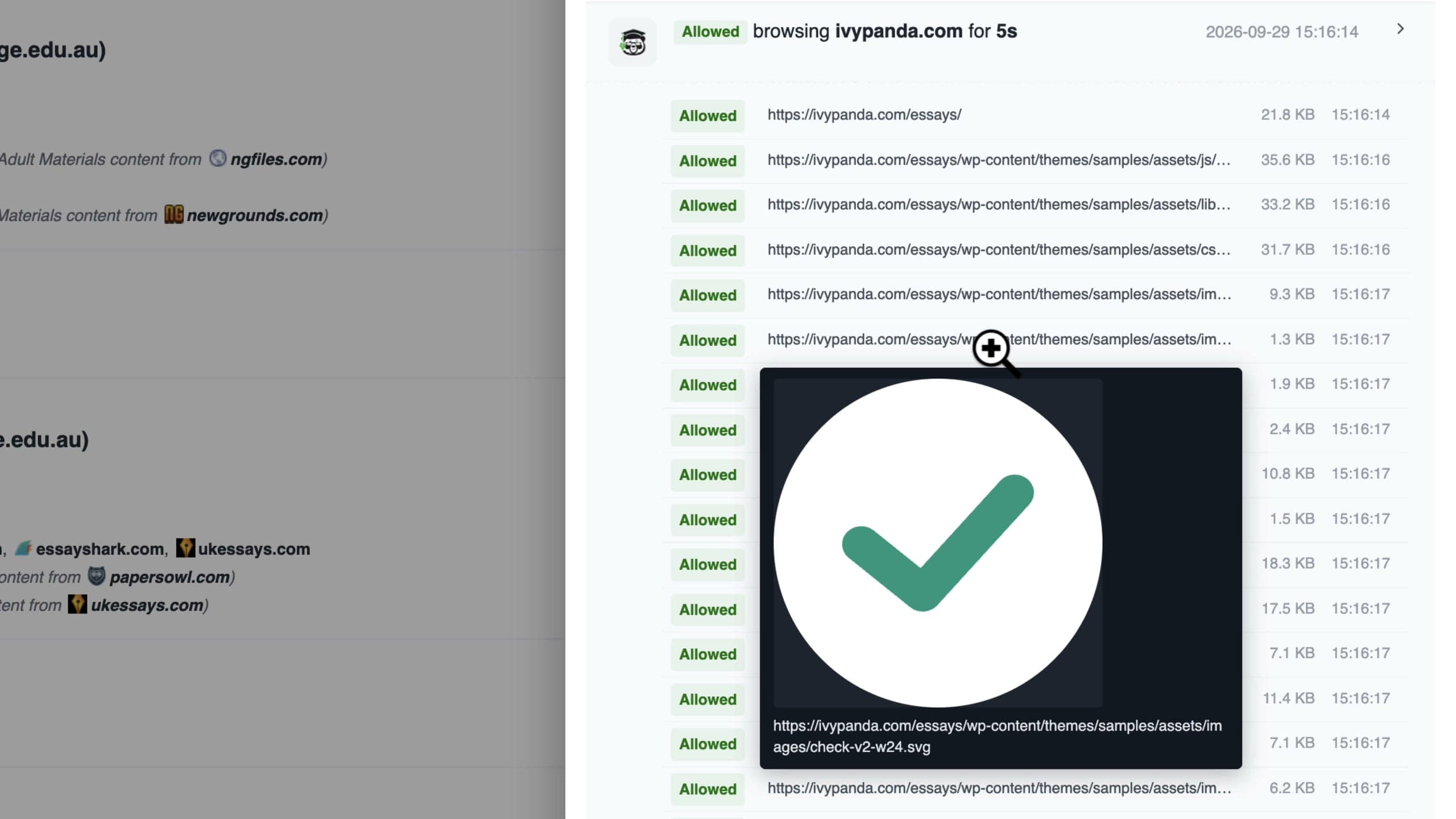
Click View Sites to see each visit with its duration, then expand a visit to see the individual URLs. Hover over an image URL and you get a preview of that image, which helps when you need to confirm what a student saw.
Everything, from a single user's site list to the whole report, exports to PDF, Markdown or CSV.
Email and chat monitoring from Microsoft 365
Fastvue Reporter has always imported web activity from your firewall. Version 4.5 adds your Microsoft 365 tenant as a second source. Once connected, Fastvue Reporter retrieves emails, Teams channel messages and one-to-one user chats through the Microsoft Graph API.
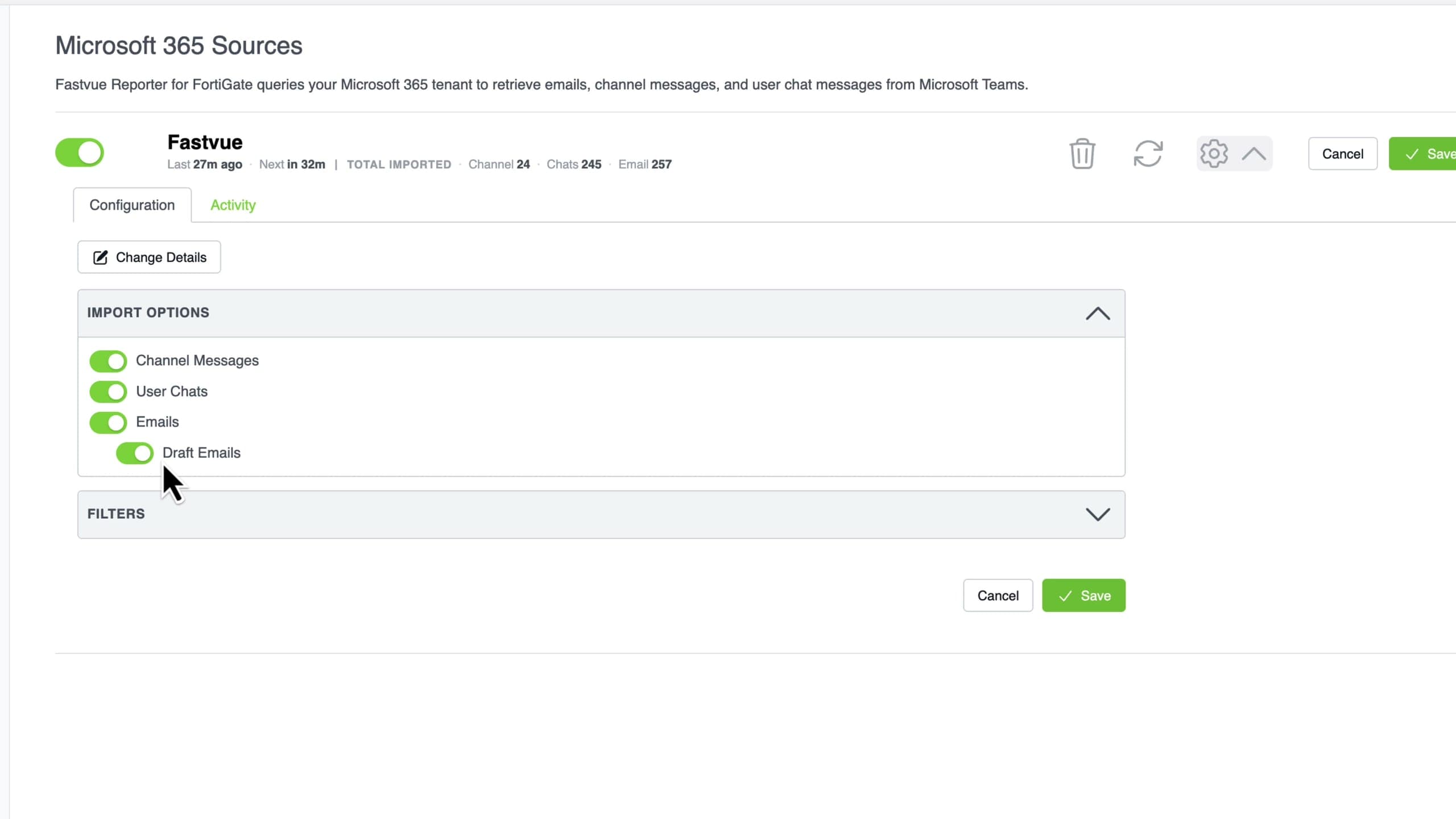
Setup means creating an app registration in Microsoft Entra with permission to read email and chat messages, then entering those details under Settings > Email & Messaging. From there you choose what to import: channel messages, user chats, emails, and optionally draft emails.
You probably don't want to import emails from every person in your organization. The Filters section lets you include or exclude emails and direct Teams messages (DMs) by user group and/or users. Anyone outside the filter is never queried for sent or received messages. Channel messages can also be filtered by including or excluding specific Teams and/or Channels.
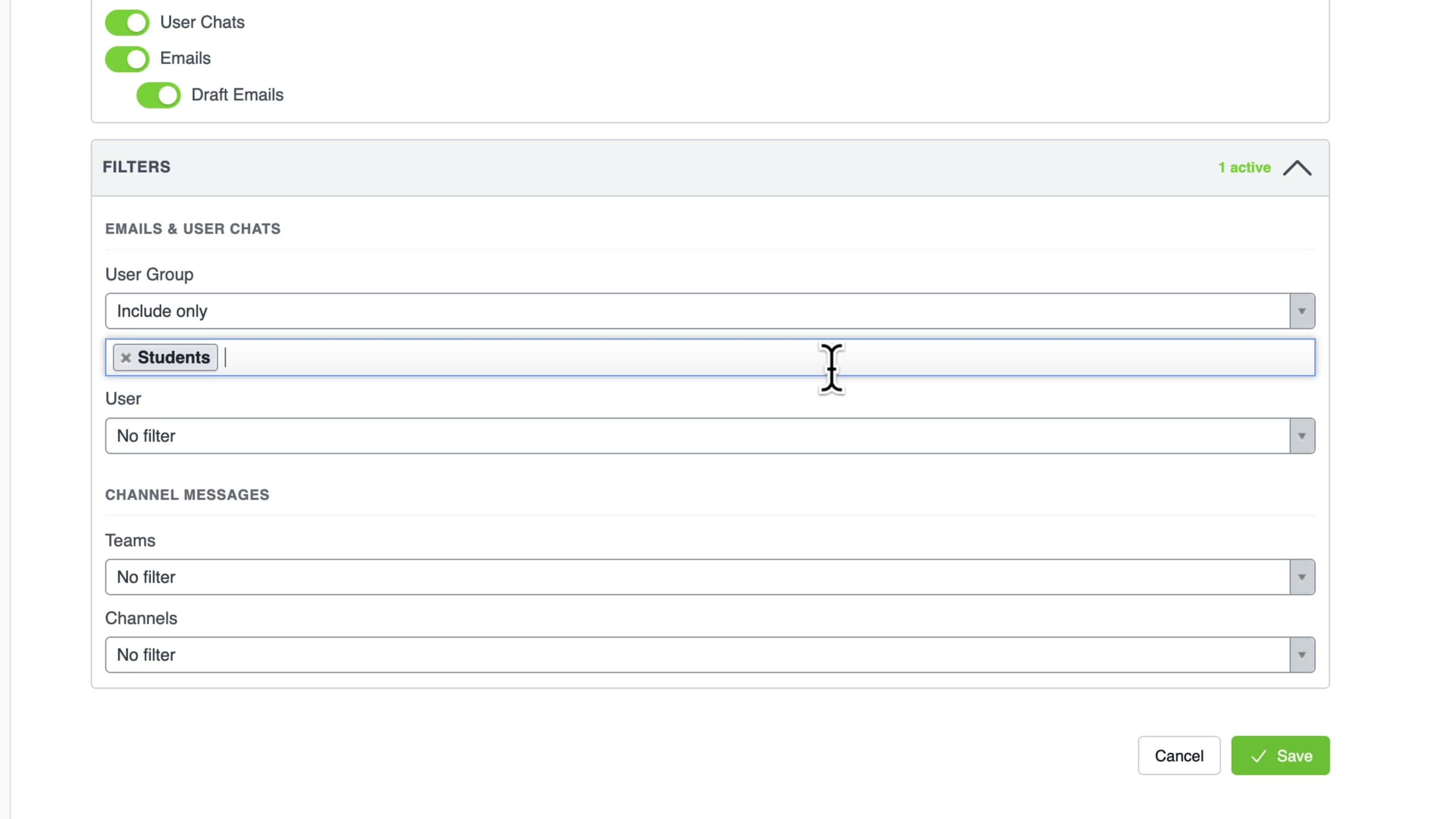
It's important to note that if a person in an excluded group sends an email or message to someone in an included group, that message will be imported as Fastvue Reporter will import the included person's sent and received messages.
However, only keyword-matched messages are imported.
In the school example above, if a student receives an email with a matched keyword in it from an excluded staff member, that email will be imported.
AI risk assessment
Fastvue's keyword matching has always included a long list of exclusions to stay useful. For example, "shooting" but not basketball shooting or photography shooting. Cyberbullying phrases require even more exclusions, because "your mom is a" matches "your mom is a lovely person", and email and chat produce far more of these than web searches and video titles ever did.
AI risk assessment is Fastvue's answer to this problem. After matching a keyword, Fastvue Reporter sends the context around the match: the surrounding 250 words of an email or chat, a video title and channel, or a search phrase and the site it came from, to an AI model. The model returns a risk level of Severe, Serious, Moderate, Mild or No Risk, a reason, and a confidence score. The AI also receives the name of the keyword group that triggered the match, so a custom keyword group called Plagiarism containing terms like "write me a" gives the model the intent behind the keywords.
The feature is off by default. To enable it, go to your Fastvue Reporter Settings and select AI Risk Assessment under Enrichment and Classification. When you turn it on, the first thing it asks for is a data region: Europe, United States or Australia, where your data is processed and temporarily stored.
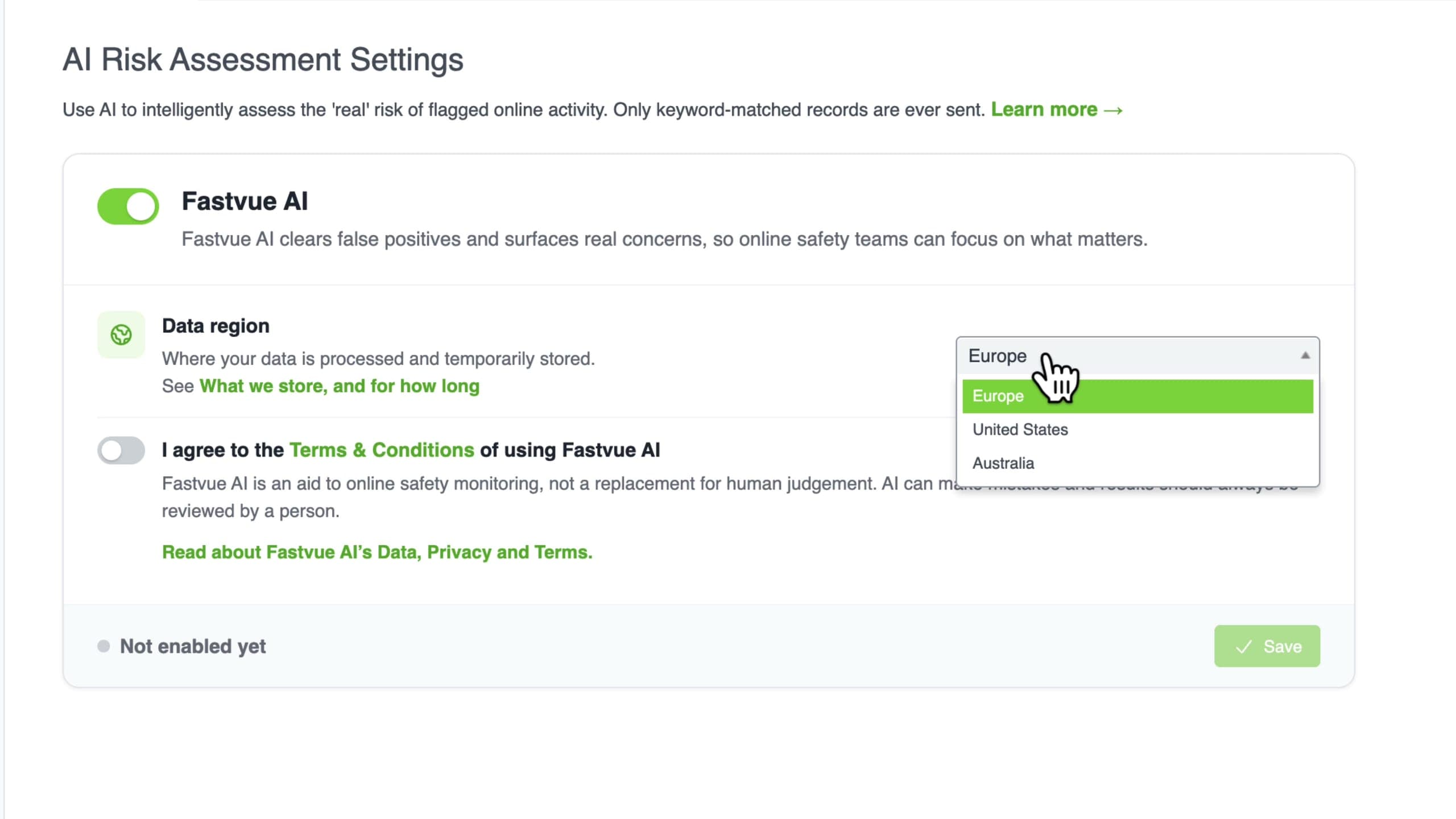
Fastvue AI's Data Processing, Privacy and Terms
Fastvue has taken much care to ensure your data remains private and in your selected region. For full details, please read the Fastvue AI: Data, Privacy and Terms, but the main points are:
- Personal details such as names, email addresses, phone numbers, card numbers and postcodes are redacted and replaced with tags such as {redacted Email}, before it is sent to an AI model for assessment.
- We only use AI models and APIs that do not train on your data.
- AI models only ever see enough context around a keyword match to make an accurate risk assessment. No usernames, IPs or other identifying information are ever sent.
- You control what is sent via Settings > Keywords. Activity that does not match a keyword is never sent. Any keyword group can be excluded from AI Risk Assessment, and its keyword matched activity will still show in the Safeguarding Report as Unscored.
Test it before you trust it
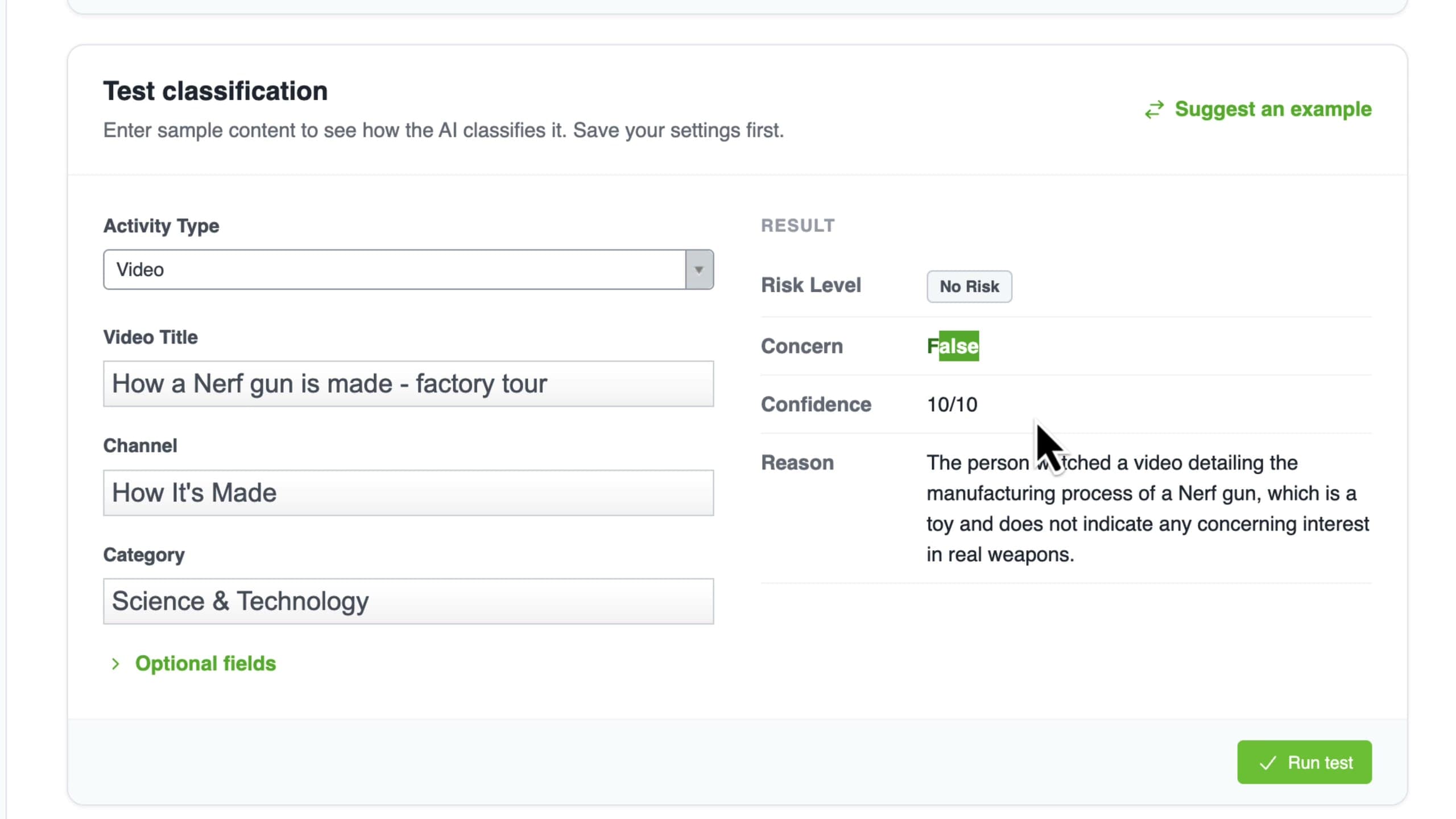
After you save, a Test Classification panel lets you try the model on a search phrase, an email or a chat message of your own, or click Suggest an Example. For example, a video titled "How a Nerf gun is made - factory tour" would ordinarily trip an extremism keyword on "gun". With the title, channel and category as context, the model returns No Risk with 10/10 confidence and explains that it is a toy manufacturing video.
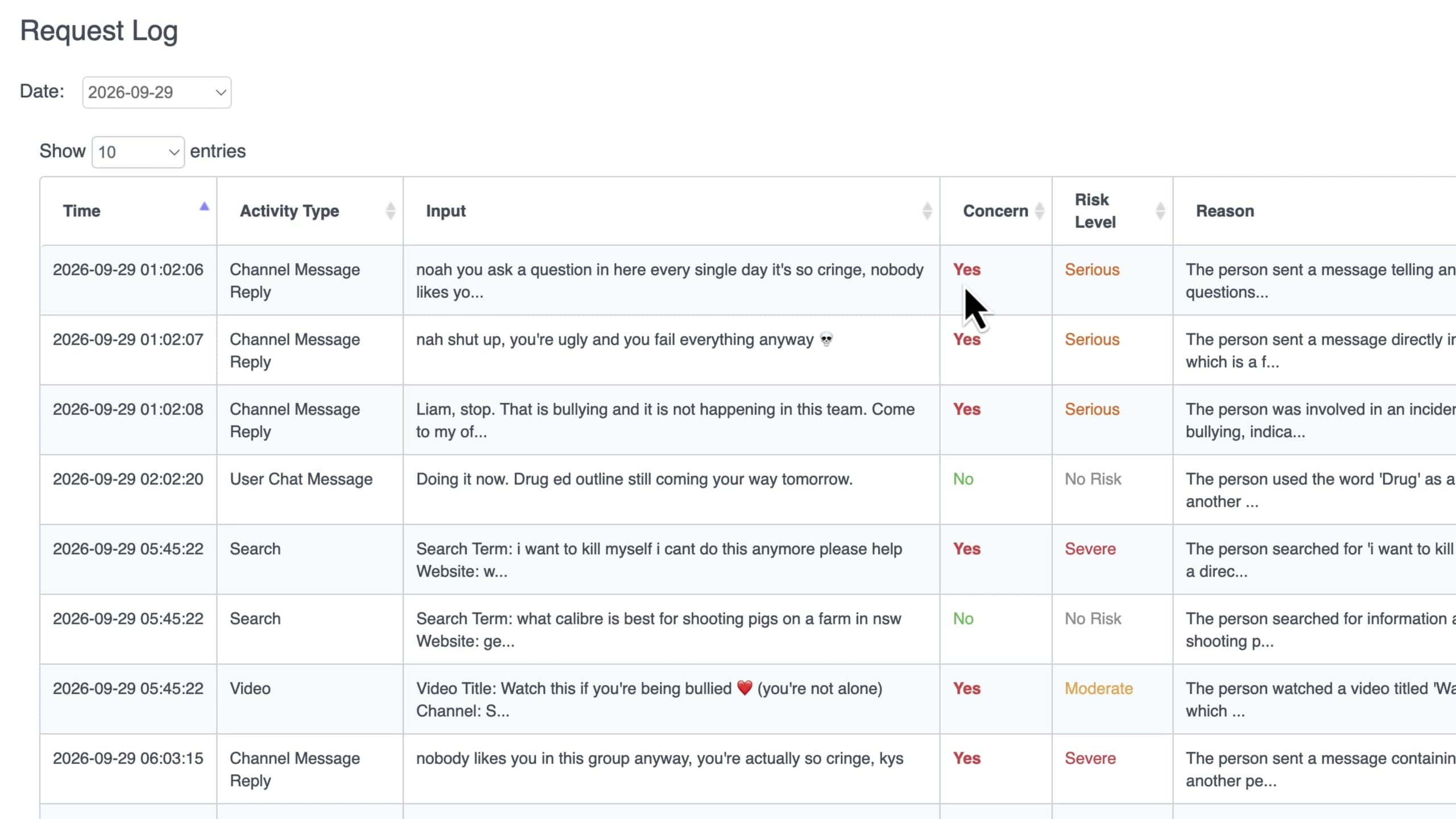
The Statistics page keeps a request log of everything sent to the AI, with the input, the concern verdict, the risk level and the reason, so you can audit how the feature is behaving on your own data.
Are the new features included in my existing license?
The new Safeguarding Report is included for everyone. Email and Messaging (the Microsoft 365 integration) and AI Risk Assessment are a paid add-on. We would love to give them away, but every classification costs us real money for AI inference, and giving that away would send Fastvue broke, which is no good for anyone. We have kept the add-on as affordable as we can. Contact your local partner or [email protected] for pricing.
Getting Fastvue Reporter 4.5
To upgrade, log in to the Fastvue website to download the latest version, then follow the installation guide to upgrade your Windows install, or update your Fastvue Reporter container in the Linux/Docker version. For the full list of changes in your specific Fastvue Reporter product, head over to our Release Notes site. To check the version you are currently on, go to Settings > About.
Why the big version jump? Is upgrading safe?
Yes, upgrading is safe. You can upgrade your existing Fastvue Reporter installation (for example, Fastvue Reporter for FortiGate v1.0.1.86) straight to 4.5. There are no compatibility issues or breaking changes.
Background: each brand used to carry its own major version. Fastvue Reporter for FortiGate was v1.0, SonicWall was v2.0, Sophos was v3.0 and TMG was v4.0. All Fastvue Reporter products run on the same codebase, and different major versions for each produced unnecessary admin (and headaches), so we have synchronised them all on 4.5. Every Fastvue Reporter brand now shares the same version number. That covers Reporter for Barracuda, Cisco, ContentKeeper, Fortinet, Palo Alto Networks, SonicWall, Sophos, WatchGuard, and even the old Microsoft TMG - yes, some folks still use it!).
We picked 4.5 because of how much has changed recently, including the Microsoft 365 email and messaging integration, AI Risk Assessment, the interface rework, and much faster report generation.
Questions and Feedback
If you have questions about the new report, the Microsoft 365 connection, the AI feature or anything else, email [email protected] and we will help you out. We would also like to hear how the risk levels line up with what your wellbeing team sees on the ground, since that feedback drives what we tune next!